

In this guide we describe the steps to import routes via TomTom. Please note that we assume you have already downloaded TomTom Go, have the paid version, and have installed the European maps.
Make sure you make these preparations if you haven't already. You can download the TomTom Go application from the App Store or Google Play Store.
Installation is easy, just follow the following screenshots as shown below.
‼️ PLEASE NOTE IMPORTANT ‼️ Also install the BikeGPX app, sometimes TomTom does not recognize a road. If this is the case, you always have the BikeGPX app as an alternative. If you want to install BikeGPX, follow this manual.
‼️ PAY ATTENTION WHILE NAVIGATING, DO NOT BLINDLY TRUST TOMTOM ‼️: Another small side note: Do not completely trust TomTom. Although the navigation program generally works well, it can sometimes send you via unpaved roads. This happens when TomTom automatically chooses an alternative route in case of heavy traffic or road closures.
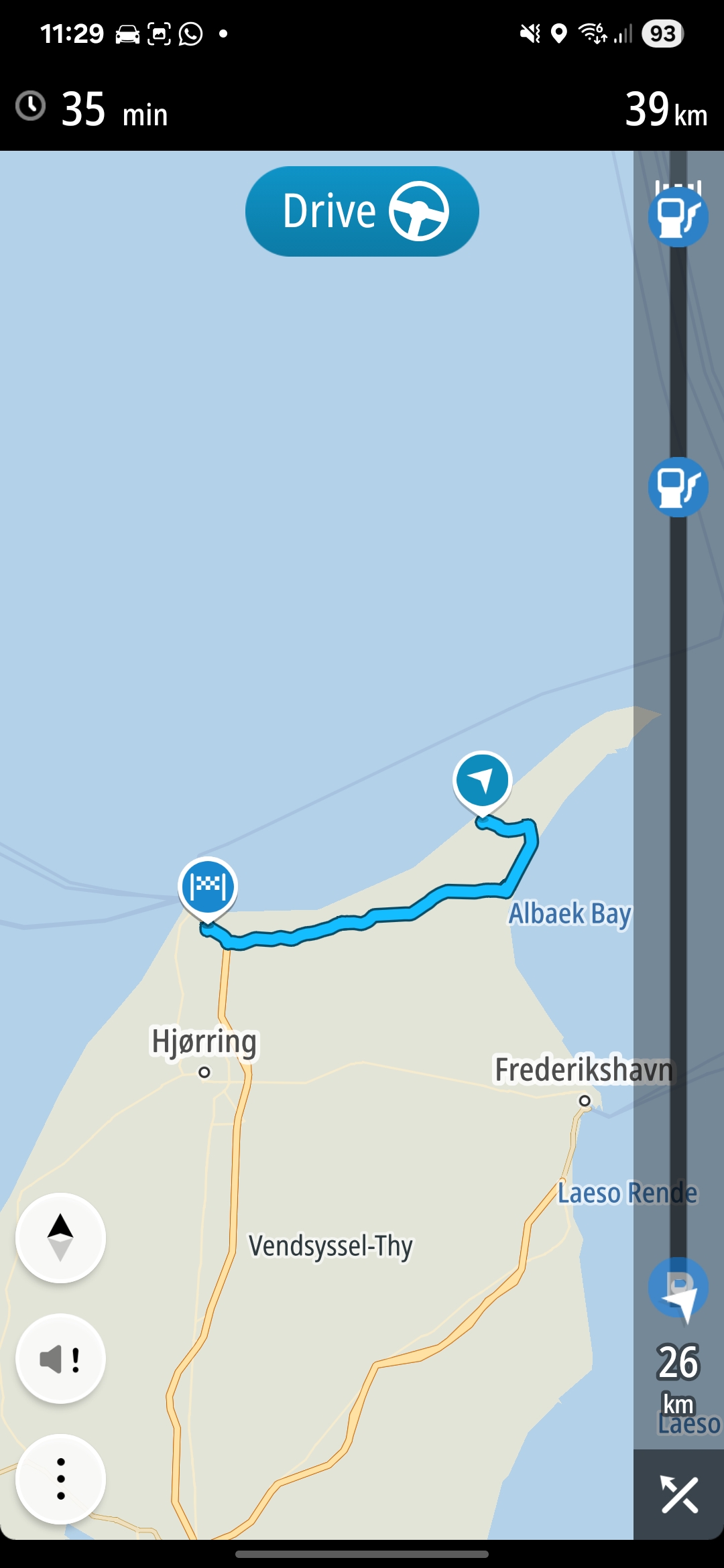
In addition, errors can occasionally occur in the navigation. For example, TomTom may first send you in a certain direction and then let you drive back. See the screenshot below for an example of what we mean by this.

That is exactly the type of error we are referring to and that can sometimes occur in TomTom. It does not always happen, but it does on certain routes. It is still a mystery to us how this exactly occurs. If you use TomTom, pay close attention and use your common sense — do not blindly trust the route it indicates.
For instance; are you going on tour in France? Then download the map of France and the surrounding countries. For example, if you drive through the Black Forest, there is a good chance that you will cross multiple borders. If you have not downloaded the necessary maps in advance, you may receive the message: 'Route not possible' when starting the app. Now follow the instructions for adding maps.
Go to the hamburger menu

Go to settings

Go to map & display

Go to downloaded maps

Press Add

Download the maps you need.

Sign up with the FancyCarTours account, which you will receive from us after you have signed up for an edition.

Log in with the information you received from us.

Once you are logged in you will see the following screen, make sure MyDrive is enabled. This is important!
Again: enabling MyDrive is important!
Finally: enabling MyDrive is important! 😁 If this is not enabled, we cannot load the routes. This is the most common mistake—having My Drive disabled and not seeing any routes.

You have now enabled My Drive.

Now go to My Routes

The installation is now complete. Now select a route. If you don't see the routes, please wait for 5 minutes, synchronization can sometimes take a while.

Now press Drive for Android users, and for iPhone users you have to tap drive and drive now. Don't touch the screen while driving.
‼️ DON'T FORGET, TURN ON MY DRIVE ‼️ Don't forget to turn on My Drive, otherwise the routes won't be visible. Scroll up a bit, there you can see how to turn on My Drive.
You are now ready to drive routes via FancyCarTours with TomTom with CarPlay or Android Auto.